User roles
Goal: you get to know the predefined user roles and, if needed, create your own user role.
Rillsoft Integration Server provides seven predefined user roles for working with user management, project portfolio, resource pool, and add-on modules such as iCalendar.
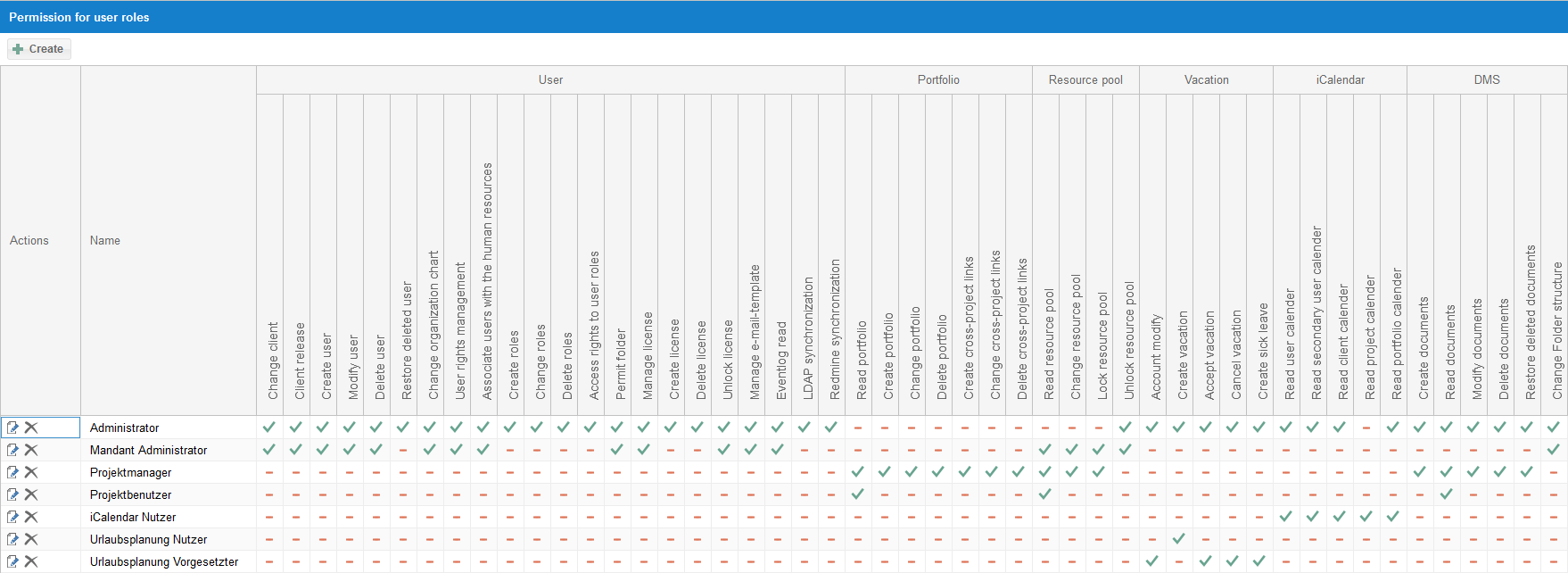
Administrator
Client Administrator
Project manager
Project user
iCalendar user
Vacation planning-user
Vacation planning supervisor
User roles define rights for folder-independent activities such as user management and working with the portfolio and the resource pool. Which activities are possible with an assigned user role is defined under Administration > User roles.
To work with Rillsoft Project, at least the following access right of the user roles is required:
Read resource pool
Available rights groups
All possible actions are distributed across the following groups:
User management
Change client
Client sharing — a link between a client and users
Caution! If a user has no access to a client, they cannot open or edit resource pools or projects of that client in Rillsoft Project.
Create user
Change user
Delete user
Restore deleted user
Change organization chart
Manage user rights
Assign personnel resources
Create roles
Change roles
Delete roles
Access rights for user roles
Access rights for folder roles
Manage licenses
Create licenses
Delete licenses
Unlock license
Manage e-mail templates
Read event log
Redmine synchronization
LDAP synchronization
Work with portfolio
Read portfolio
Create portfolio
Change portfolio
Delete portfolio
Create cross-project links
Change cross-project links
Delete cross-project links
Manage resource pool
Read resource pool
Change resource pool
Lock resource pool
Unlock resource pool
Vacation planning
Change vacation account
Enter vacation
Accept vacation
Cancel vacation
Enter sick leave
Work with the additional iCalendar and Timeline modules
Read user calendar
Read subordinate users’ calendar
Read client calendar
Read project calendar
Read portfolio calendar
Work with DMS
Create documents
Read documents
Change documents
Delete documents
Restore documents
Manage folder structure
Create a new user role
Step by step
Click the button
 .
.Enter a name for the role, optionally add notes.
Click Save.
Check the result: the new user role appears in the list under Administration > User roles and can be assigned to users.