Create your first client
Goal: You create your first client. This automatically gives you a dedicated resource pool for this company or business unit.
Duration: approx. 5 minutes
Prerequisite: You are logged in as administrator, see Set up RIS: server or cloud.
As a rule, exactly one resource pool is created per client. Accordingly, you should work with only one resource pool per client — if you want to draw resources from several resource pools, create several clients accordingly.
Step by step
Go to Administration > Clients.
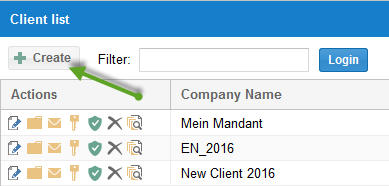
Click the New client button.
On the General tab, enter a name and optional notes.
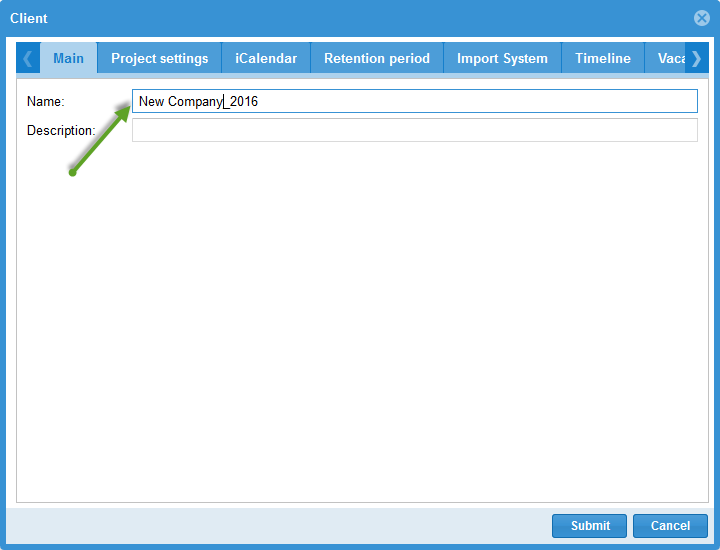
Confirm with Save.
Check the result
The new client appears in the client list under Administration > Clients. Rillsoft Integration Server has automatically created an empty resource pool for this client. In Rillsoft Project, this resource pool is selected via File > Resource pool > Rillsoft Integration Server > Select, see Connect the resource pool to Rillsoft Project.
Next steps: Further settings (project properties, iCalendar, retention periods, holiday planning, etc.) are optional and can be adjusted later at any time. To create users for this client, see Create your first user and assign a role.
create client, new client, client, clients, customer, company, create resource pool, it-administration