Why does floating license access fail?
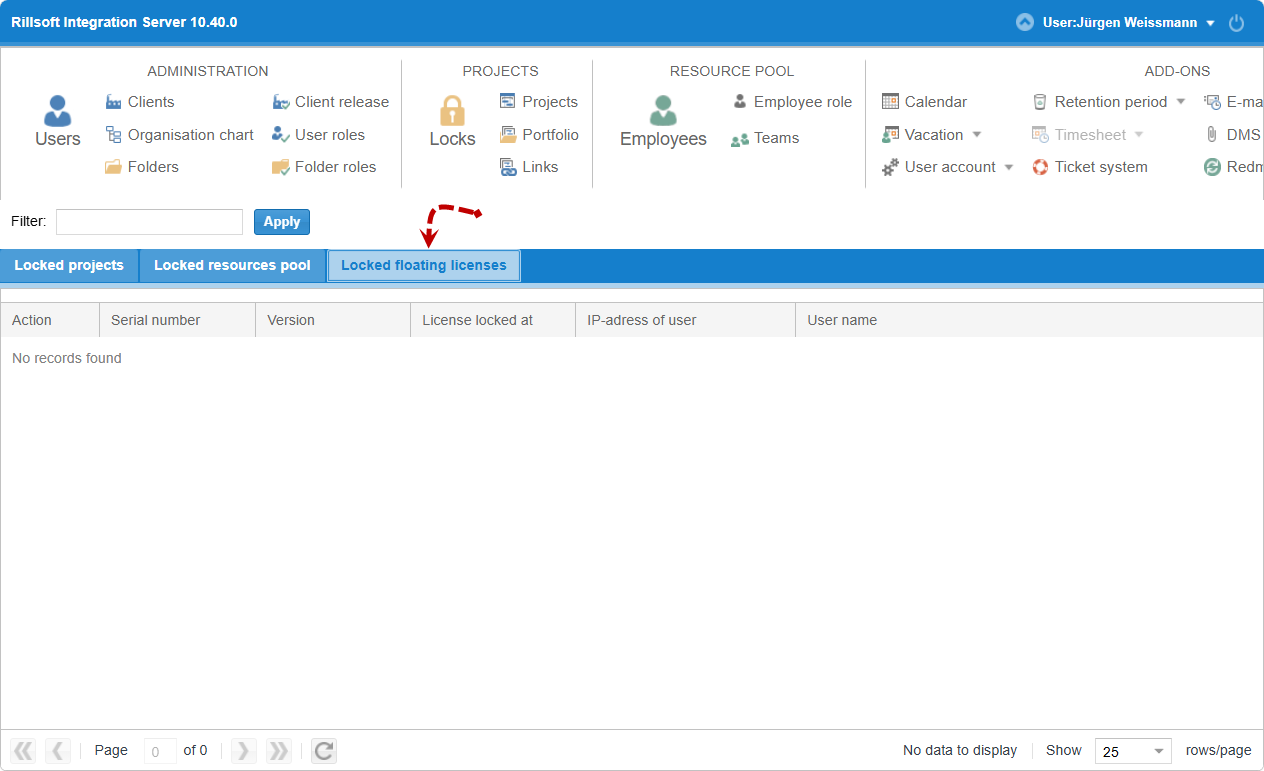
Most often, the floating license is not assigned to the user, or all license seats are already in use. In the Rillsoft on-premises solution, a floating license that has not yet been activated can also be the cause. In Rillsoft Cloud, activation happens automatically after purchase. First check under Locks > Locked floating licenses whether all seats are currently in use.
Symptom
A user cannot work with a floating license; access is denied.
Possible causes
On-premises solution only: the floating license has not yet been activated.
The user has not been assigned to the floating license.
All license seats are already in use by other users.
Note
Activating a floating license is only required on an on-premises server. In Rillsoft Cloud, activation happens automatically after purchase. In Rillsoft Cloud, first check above all whether the user has client sharing, see Cloud vs. on-premises operation.
Check steps
Go to Administration > Clients > shield icon and check whether the user is assigned to the floating license. On the on-premises solution, also check whether the floating license is activated, see Floating licenses of a client.
Go to Locks > Locked floating licenses and check whether all license seats are currently in use by other user sessions, see Lock.
Action
License not activated: Activate the floating license — only on the on-premises solution, see Floating licenses of a client. In Rillsoft Cloud, activation happens automatically after purchase.
User not assigned: Assign the user to the floating license, see Floating licenses of a client.
All seats in use: End a no-longer-needed user session under Locks > Locked floating licenses to free up a license seat, see Lock.
Related topics
floating license error, license in use, free up license seat, ris, integration server, cloud, on-premises, on-premises server, operating model, multi-user, it-administration