Set up Rillsoft Integration Server for several project managers
Goal: several project managers can plan in Rillsoft Project at the same time, open projects together as a summary project and link them across projects.
Prerequisite: you are logged in as administrator. The steps apply to the on-premises server and to Rillsoft Cloud.
Checklist
No. |
Step |
Notes |
|---|---|---|
1 |
Define the client |
All projects that are planned together or opened in a summary project belong to one client and therefore use the same resource pool. See Create your first client. |
2 |
Create the folder structure |
Create folders per undertaking, team or department, for example one folder per summary project with subfolders per trade. See Folders. |
3 |
Create and release users |
Each project manager needs a user and the Client release for the client. Without client release, they cannot open any projects or resource pools of this client in Rillsoft Project. See Define a user’s client access. |
4 |
Assign folder roles |
Project managers receive Create project, Read project and Change project for their folder, and only Read project for neighboring folders if needed. Whoever edits the summary project as a whole needs rights for all folders involved. If a project is split into several projects in Rillsoft Project with Split project, the new projects are saved in the selected target folders. See Folder roles. |
5 |
Grant rights for locks |
The folder rights Lock project and Unlock project control who may lock projects for editing and remove locks. See Monitor locks in team operation. |
6 |
Assign user roles |
At least Read resource pool. For portfolios and cross-project links, the rights of the group Work with portfolio. See User roles. |
7 |
Define who is responsible for the resource pool |
Only a few users receive Change resource pool. This keeps the shared resource base consistent. |
8 |
Check licenses |
There must be enough license seats for all users who work at the same time. See Floating licenses in detail. |
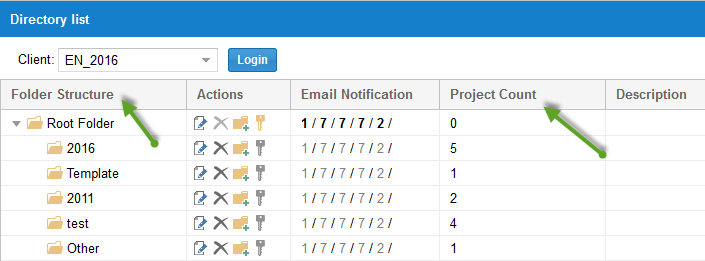
One folder structure per undertaking and team in the client’s folder list:
Rights by task in the team
Task in the team |
Typical rights |
|---|---|
Project manager of a sub-undertaking |
Client release; folder role with Create project, Read project, Change project for their own folder; user role with Read resource pool |
Overall project management |
Additionally Read project, if needed Change project for all folders involved; rights to create, change and delete cross-project links |
PMO / executive management |
Read project for all relevant folders; Read portfolio, if needed Create portfolio and Change portfolio |
Resource manager |
Read resource pool and Change resource pool |
Administration |
Unlock project, Unlock resource pool, Unlock license |
The table is a recommendation. The user roles do not list a separate right for summary projects; which projects a user can open and change in the summary project results from their folder roles. Adapt the roles to your organization. An overview of all rights is provided in Roles and permissions matrix.
Note
In the Rillsoft Integration Server summary project dialog in Rillsoft Project, the Available column shows how many projects of the summary project the logged-in user can read. If projects are missing for a user in the summary project, check their folder roles, see Why doesn’t a user see a project or portfolio?.
Check the result
Each project manager can open and save their project in Rillsoft Project via File > Open > Rillsoft Integration Server > Project.
The overall project management can open all projects involved via File > Open > Rillsoft Integration Server > Summary project.
All projects use the same resource pool.
Related topics
summary project rights, folder roles project manager, client release, overall project management, teamwork checklist, access rights, permissions, user roles, folder roles, manage permissions, it-administration