Why doesn’t iCalendar sync work?
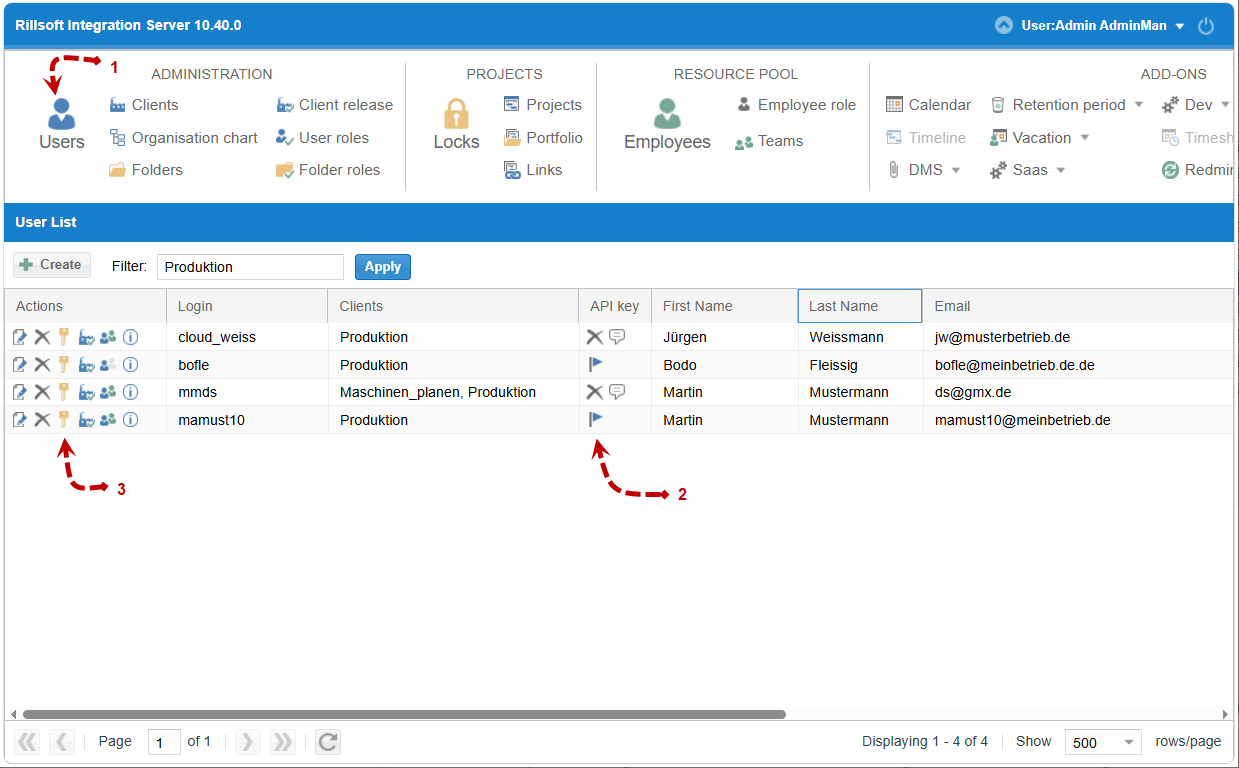
Most often the user is missing the iCalendar user user role or a valid API access key, or the iCalendar template has not yet been defined for the client. First check under Administration > Users whether the user has an API access key.
Symptom
Appointments from Rillsoft Project do not appear, or are not current, in the external calendar program (e.g. Outlook), even though iCalendar sync should be set up.
Possible causes
The user does not have the iCalendar user user role.
No API access key has been generated for the user, or the key is outdated or entered incorrectly in the external calendar program.
The iCalendar template (which information is shared) has not been defined for the client.
Check steps
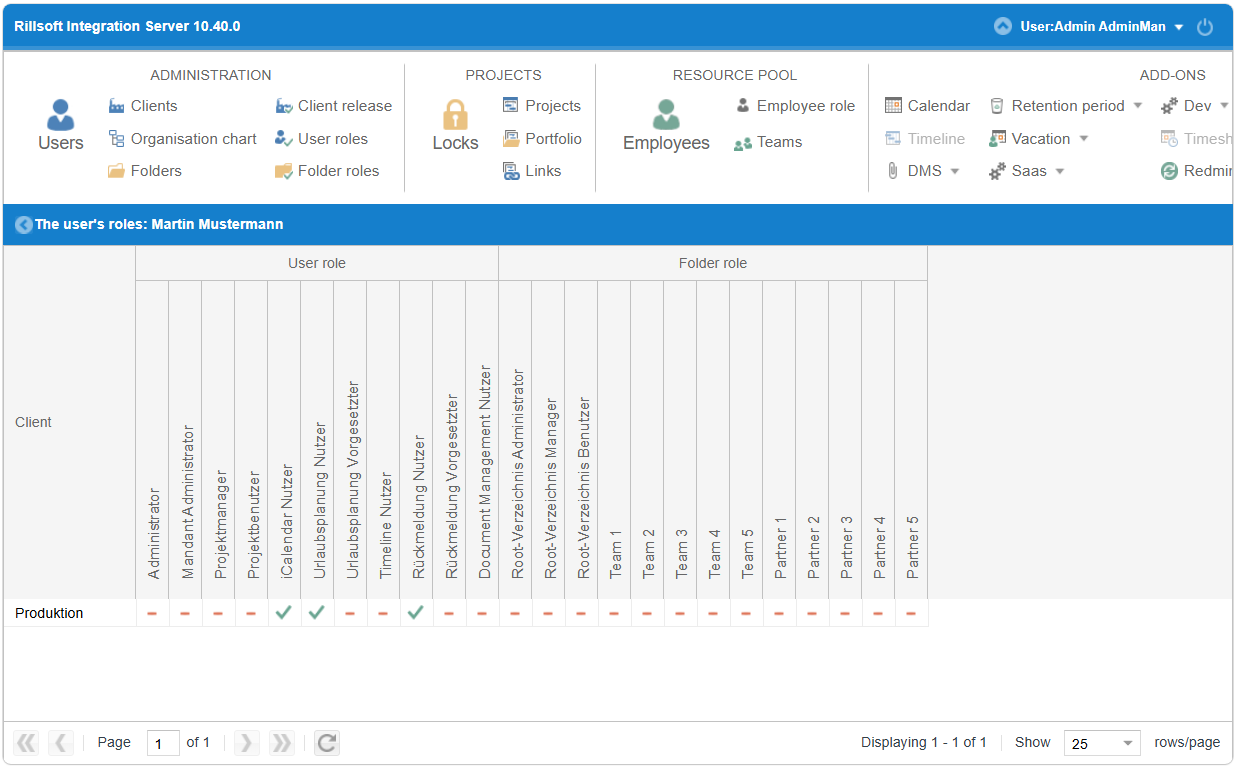
Go to Administration > User roles and check whether the iCalendar user role is assigned to the user, see User roles.
Go to Administration > Users and check, in the API access key column, whether an access key exists for the user, see Users.
Go to Administration > Clients > Edit > iCalendar tab and check whether information is defined there, see iCalendar.
Action
Missing role: Assign the user the iCalendar user user role, see Customize user access rights.
Missing/outdated API access key: Generate a new API access key and enter it in the external calendar program, see Users.
Missing iCalendar template: Define the iCalendar information for the client, see iCalendar.
Related topics
Expert Knowledge — API access keys and iCalendar
icalendar not working, icalendar not syncing, api access key missing, icalendar, time entry, feedback, holiday planning, dms, timeline, email notification, project-manager, it-administration