Monitor locks in team operation
Goal: you understand when projects and the resource pool are locked, and remove locks only when nobody is working on them any more.
When several project managers work at the same time, locks prevent changes from overwriting each other. How to display and remove locks in the web interface is described in Lock.
When something is locked
What |
When locked |
|---|---|
Project |
When a user opens the project for editing in Rillsoft Project. In the Pessimistic locking mode, all other users can open the project during this time only as a read-only copy. In the Optimistic locking mode, every user can edit the project at any time. |
Resource pool |
When a user has opened the resource pool for editing. |
Floating license |
As long as a user is working with a floating license. |
The user selects the locking mode in Rillsoft Project when opening a project or summary project. This selection is available only to users with the corresponding access rights.
In Rillsoft Project, project managers see in the open dialog whether a project is locked; in the summary project, locked projects have a red background.
Monitor locked projects
Under Locks > Locked projects you see which projects are currently locked, since when and by which user.
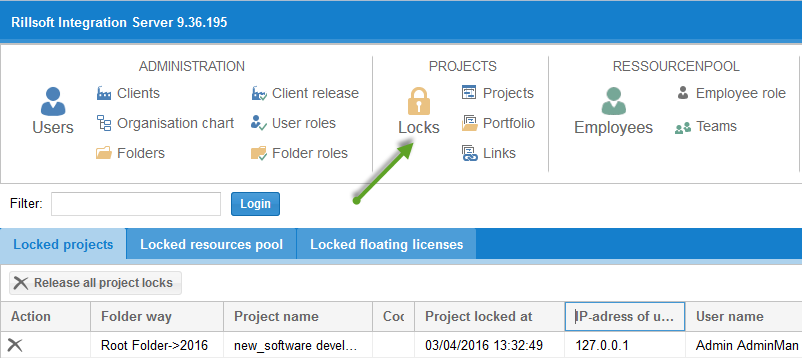
Check the list especially before status meetings or when a project manager reports that they can open their project only read-only.
When to remove a lock
Remove a lock if the user is demonstrably no longer working on the project, for example:
Rillsoft Project was not closed properly after a crash or a lost connection.
The user is absent and someone else urgently needs the project.
A project has been locked for an unusually long time.
Warning
Before unlocking, talk to the user who locked the project. If they are still working on it, two users can make changes at the same time after unlocking, and changes can be lost.
Who may remove locks is controlled by the rights Unlock project (folder role, see Folder roles) and Unlock resource pool (user role, see User roles).
Recommendations for the team
Define the locking mode uniformly in the team, usually Pessimistic.
Close projects after editing so that the lock is released.
Open projects that are only viewed as read-only.
Grant the right Unlock project only to a few users, for example administration.
Related topics
Set up Rillsoft Integration Server for several project managers
Work on Projects Simultaneously in the Rillsoft Project help
lock, locked project, unlock, locking mode, pessimistic, optimistic, read-only, ris, integration server, cloud, on-premises, on-premises server, operating model, multi-user, it-administration