Projects
Goal: you get an overview of a client’s projects, delete a project if needed, or restore an earlier project version.
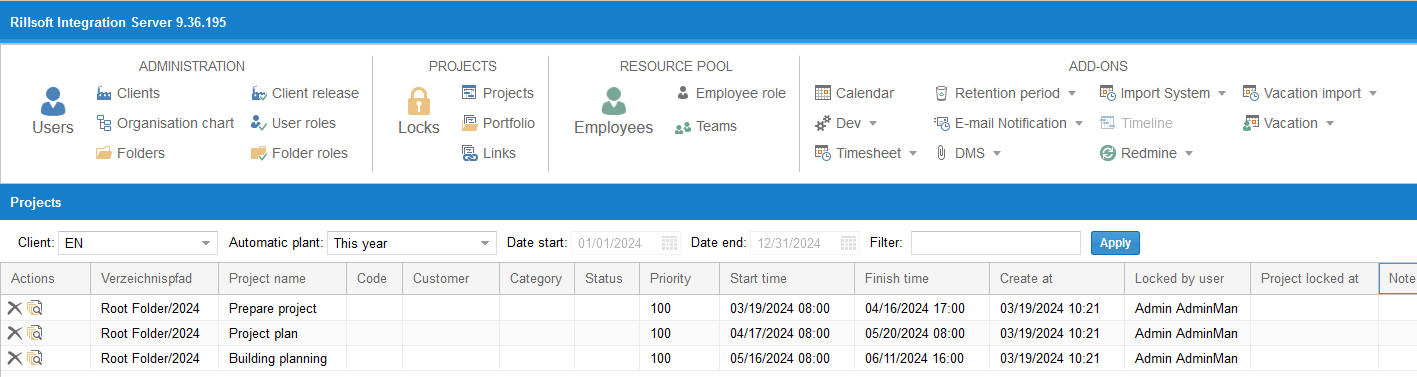
Here you see all projects of the client, or — filtered by selection criteria — a subset of them.

You can set a time frame or enter a search term in the Filter field for the Directory path or Project columns.
Functions

In the Actions column, the icon buttons Delete project
( ) and Restore old project version (
 ) are
available for each project.
) are
available for each project.
Step by step: restore a project version
Click the Restore project version icon button (
). You
get a list of all saved project versions.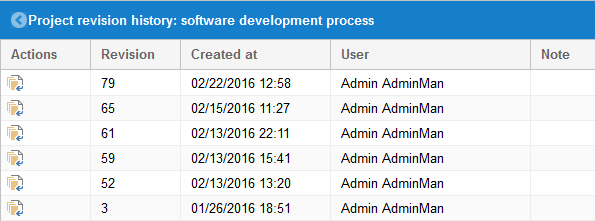
Restore the desired project version via the Restore icon button (
 ).
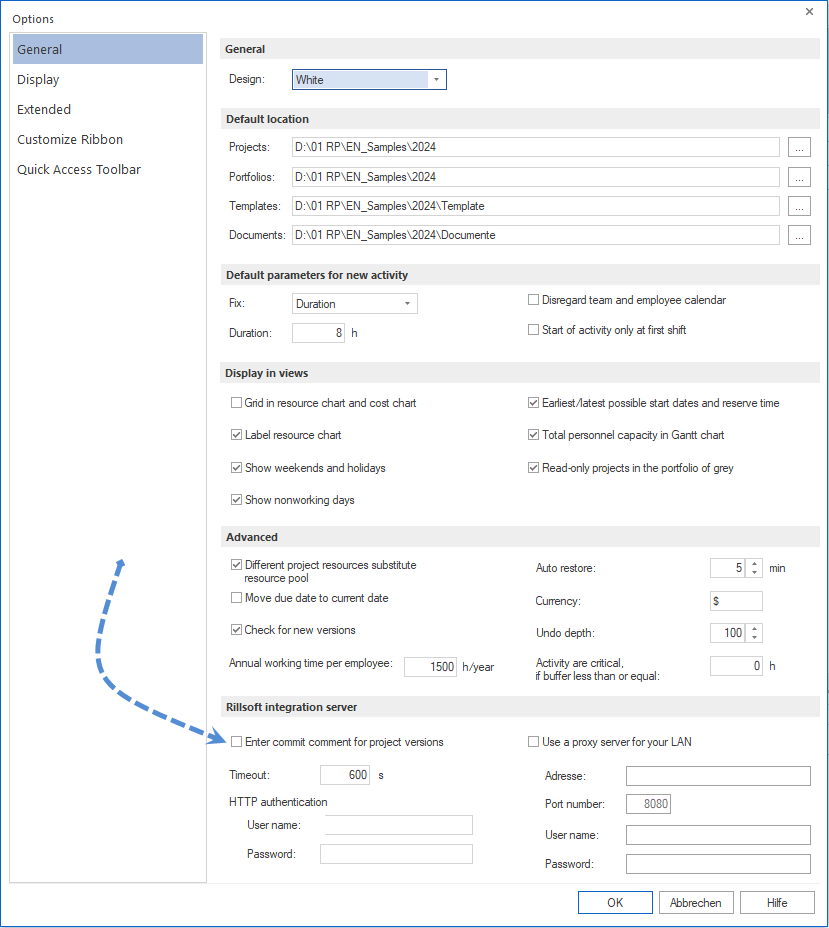
).If you assigned commit comments when saving the project, you can use them for orientation.
Note
Commit comments are only available if the Enter commit comments for project versions option is turned on in Rillsoft Project.
Check the result
The restored project version replaces the project’s current state.